What you're setting up
WhyIQ AI Radar asks five AI engines (ChatGPT, Perplexity, Claude, Gemini, and Google AI Mode) the questions your buyers ask, every week, and reads back which sources each engine actually cited. Setup is one honest conversation with the product: tell it whose radar it is, where your buyers search, and which questions matter. Everything is editable later, so nothing here is a one-way door except the full query-bank rebuild, and Radar warns you before that one.
The whole flow at a glance
Add your domain at checkout. Radar generates your question bank automatically.
Check the target market. Purchases default to the United States.
Review the generated queries: edit, add, archive, reorder.
Set the awareness stage and tidy the business profile.
Pick the weekday and hour your weekly scan fires.
Read your first Overview, then act on the trend.
Good to know
Radar measures real citations by asking the real engines. Nothing on these screens is an estimate or a prediction; if an engine did not run a question this week, Radar shows an honest blank rather than a made-up number.
Step 1: Add your domain
Pick a plan on the Radar pricing page and pay by card. The checkout form has one field that matters more than the card number: Domain to track. The domain you type there is the one Radar scans every week, so use the domain your buyers actually land on, without www or paths (for example acme.com, not https://www.acme.com/pricing).
The moment payment clears, you land in your workspace and Radar starts working: it reads your homepage, extracts a business profile, and generates 30 to 50 buyer-intent questions tailored to what you sell. That takes 15 to 25 seconds, and the Queries page shows a live skeleton until the questions land. You do not need to write anything yourself to get started.
How to read it
Your workspace opens on the client list. Click your domain to enter its workspace: the left rail holds everything this guide walks through: Overview at the top, then Competitors & sources, Moves, Your site, Queries, Action plan, Reports, and Client settings. The sidebar also shows how many questions are scanned against your plan and the exact time of the next scan.
The free check runs 8 sample questions across the same five engines once, no account needed. This guide covers the paid weekly tracking, which is where the trend, the queries you control, and the email digest live.
Step 2: Check your target market
Do this before judging any results. AI engines answer differently by country and language, so Radar localises every engine it queries, and the vocabulary of your generated questions, to one target market. New purchases default to the United States. If your buyers are in the UK, Germany, Australia, or anywhere else, set it now: a UK business measured against US answers is reading the wrong data.
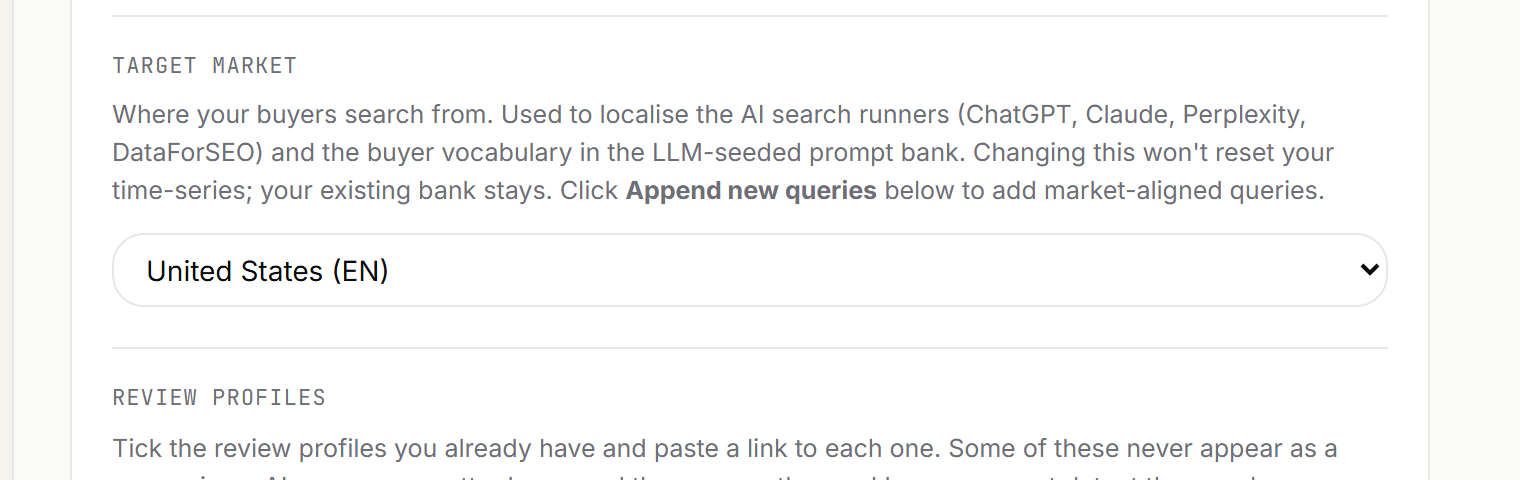
- What it controls. The country and language for the AI engine queries and for the buyer vocabulary in generated questions.
- The picker. 30 markets grouped by region. Pick where your buyers search from, not where your office is.
- No data loss. Changing market never resets your history. Your existing questions stay; append new market-aligned ones after switching.
How to use it
Open Client settings in the left rail.
Scroll to Target market and pick your country from the grouped list.
If you changed it, open the Queries page and use Append new queries (Step 3) so the bank gains questions written the way buyers in that market actually ask.
Step 3: Review your queries
Queries are the questions Radar asks the engines every week, and they are the single biggest lever you control. The generated bank is a strong starting point, but you know your buyers better than any model does. Spend ten minutes here: read every question and ask "would a real buyer of ours type this into ChatGPT?" Edit or archive the ones that miss, and add the ones only you would know.
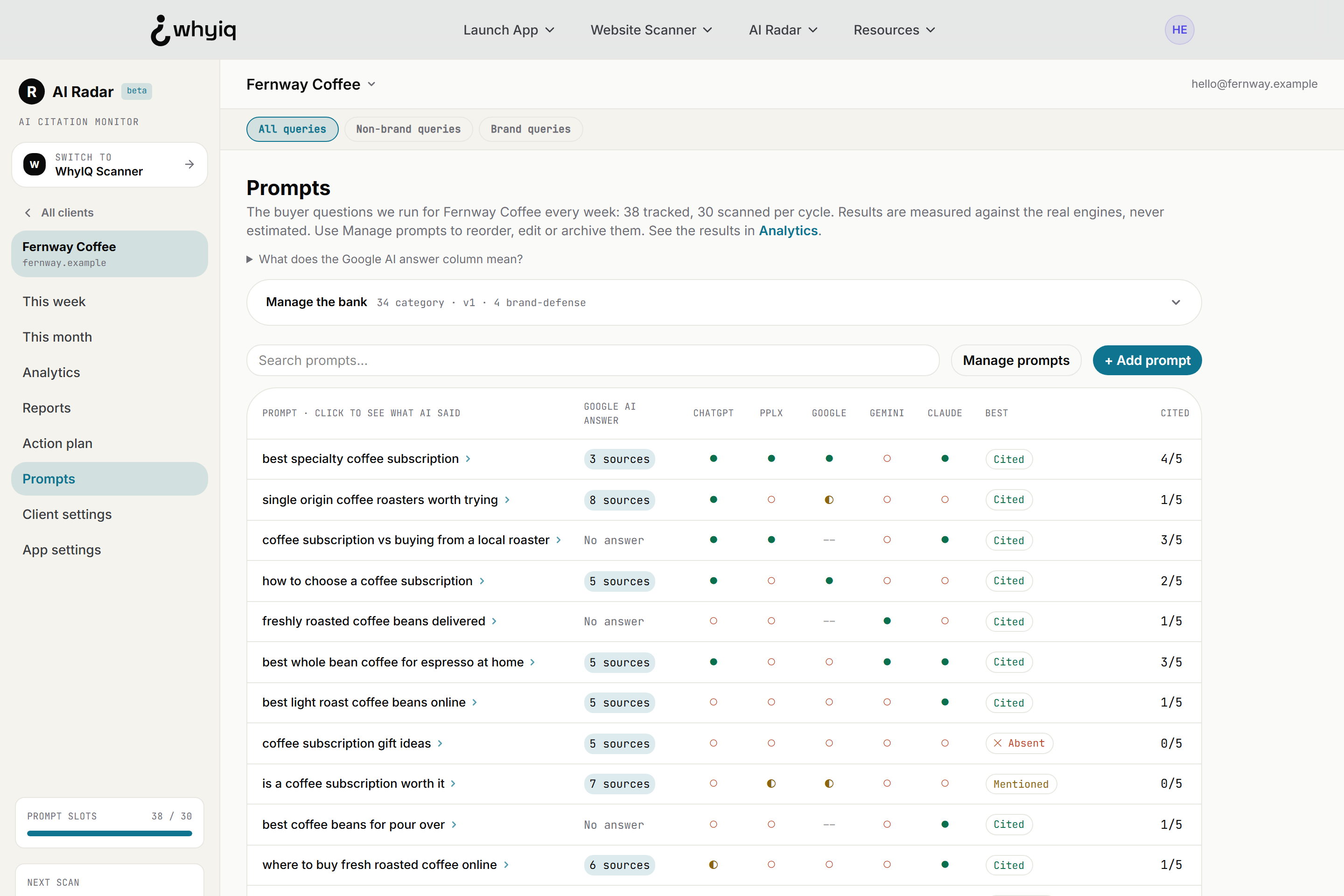
- Your questions. Click any query to read the full AI answers behind it, word for word.
- Google AI slots. How many sources Google's AI answer cites for this query in your market. Those are the slots you are competing for, so it tells you whether the query is worth tracking. It describes the query, not your result.
- Manage queries. Turns on editing: drag to reorder, pin, edit, archive, and add. The page opens read-only so you cannot reorder by accident.
Your plan scans a fixed number of questions each week (30 on SMB, 40 per client on Agency), but the bank can hold more. Everything above the blue line runs weekly; everything below is held in your bank, keeping its history, until you drag it up.
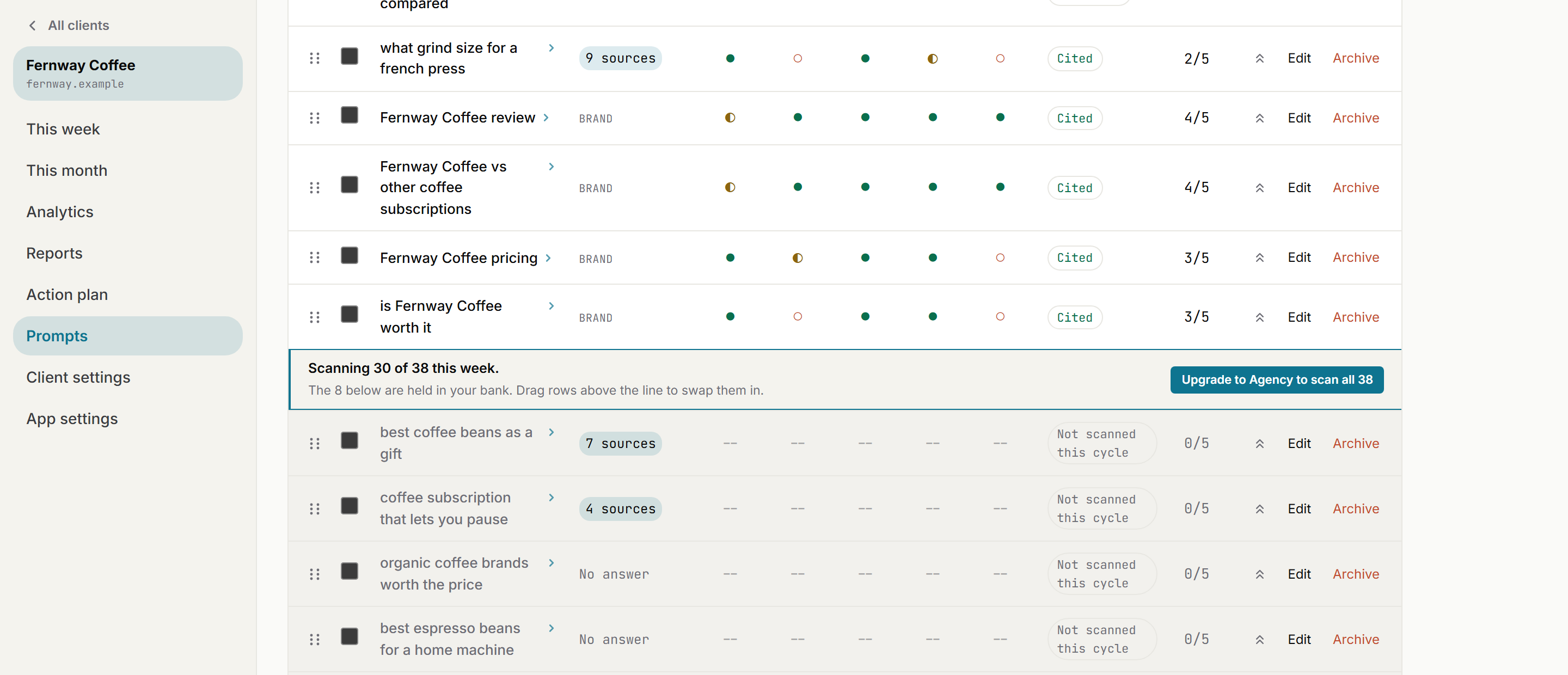
- Drag handles. In Manage mode, drag any row above the line to include it in the weekly scan, or below to bench it.
- Brand queries. Questions naming your brand are tagged BRAND and measured separately, so they never flatter your buyer-question rate.
- The line itself. States exactly how many run this week and how many are held. Nothing is scanned or billed silently.
How to use it
Read every generated question. Archive any a real buyer would never ask (archived queries keep their history and stop running).
Add questions you know buyers ask: the objection they raise on sales calls, the comparison they always make, the problem they describe in their own words.
Click Manage queries and drag your most important questions above the scan line.
Use the Google AI slots column as a demand signal. “No answer” means Google runs no AI answer for that query, which is a fair reason to swap it out, though the other engines can still cite you on it.
If Radar flags queries with no AI-search signal after a few weeks (no AI answer, nobody cited, no competitor cited either), it will suggest replacements. Archiving weak queries is optional and never deletes their history.
Step 4: Set the stage, tune the profile
Two settings shape how Radar thinks about the brand. Both live in Client settings, and both are honest questions, not vanity settings: answer them with how things are, not how you want them to be.
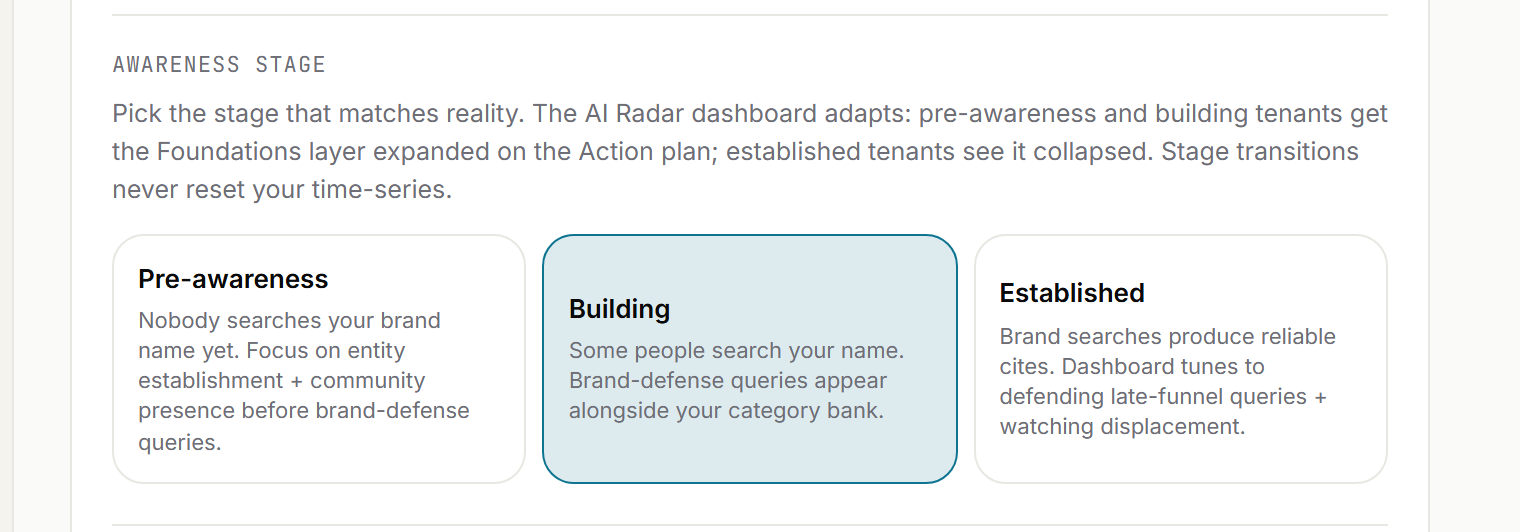
- Pre-awareness. Nobody searches the brand name yet. Radar focuses the plan on getting the brand established before defending it.
- Building. Some people search the name. Brand-defense questions run alongside the buyer questions.
- Established. Brand searches reliably cite you. The dashboard tunes to defending late-funnel queries and watching displacement.
The business profile below it is what Radar extracted from your homepage: category, who buys, the value proposition, and the vocabulary notes. The vocabulary field is the one worth editing: it records how buyer language differs from your marketing language (sellers say "revenue intelligence platform", buyers say "call recording for sales teams"), and it drives every future query generation.
Query-bank operations live in one place: the Manage the bank panel at the top of the Queries page.
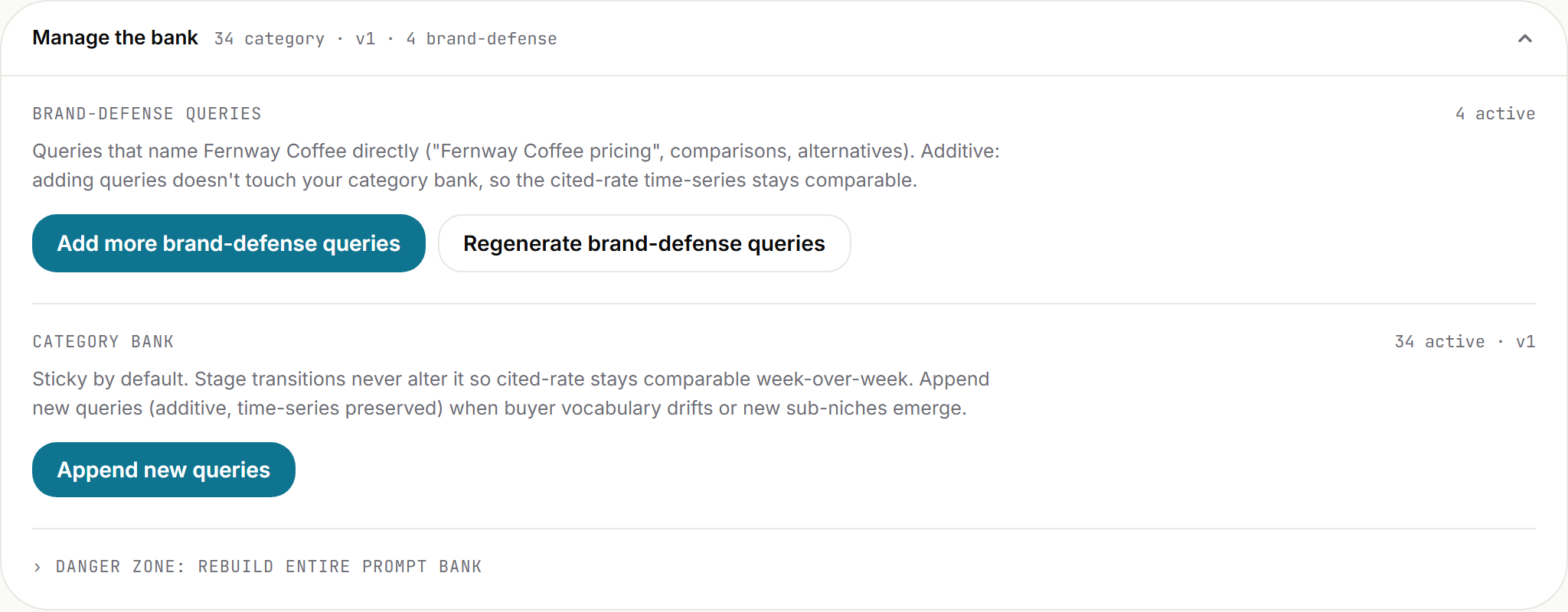
- Brand-defense queries. Questions naming your brand (pricing, reviews, comparisons). Additive: adding them never touches your buyer questions.
- Append new queries. The safe way to grow the bank. Existing questions stay, so your week-over-week numbers stay comparable.
- Danger zone. The full rebuild archives everything and starts over. Your trend resets, which is why it sits behind a warning. Use append instead unless the business has fundamentally repositioned.
Step 5: Pick your scan day
Scans run weekly. In Client settings, pick the weekday and hour (UTC) the scan fires; Tuesday morning is the default. Radar emails you when each scan lands, so there is nothing to remember: the product comes to you once a week with what changed.
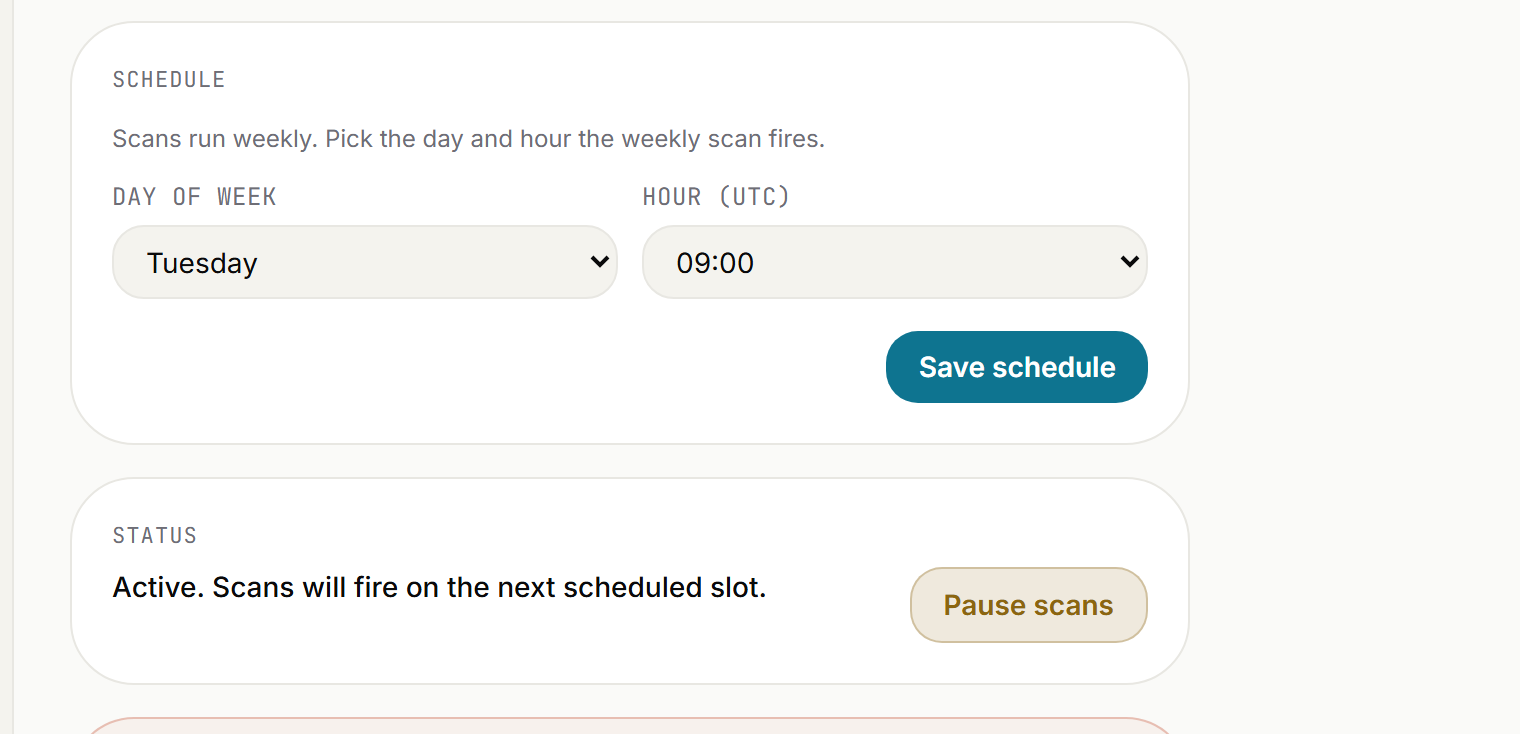
- Day and hour. When the weekly scan fires, in UTC. Saving recomputes the next run time immediately.
- Pause and resume. Pausing skips the schedule without deleting anything. Useful for a client offboarding or a site mid-migration.
- Next scan. The sidebar always shows the exact next run time, so you are never guessing when fresh numbers arrive.
How to read it
Weekly is deliberate. AI answers move slowly and off-page work takes weeks to register, so a weekly read is signal and a daily read is noise. If you ship something big and want fresh numbers before the next slot, the Scans card in Client settings offers a one-time off-cycle scan for a small fee, without touching your schedule.
Step 6: Read your first week
When the first scan lands, the Overview opens in three bands. The read is the citation-rate trend chart and a plain answer: is AI recommending you, and what share of your buyer questions had an answer citing you. What moved lists every question that climbed or slipped and who holds the answers you are missing. This week's work counts what is waiting on Moves and the Action plan. The first scan is your baseline; movement starts from the second. The period chips flip the same screen between the week, the month, the quarter, and any custom date range.
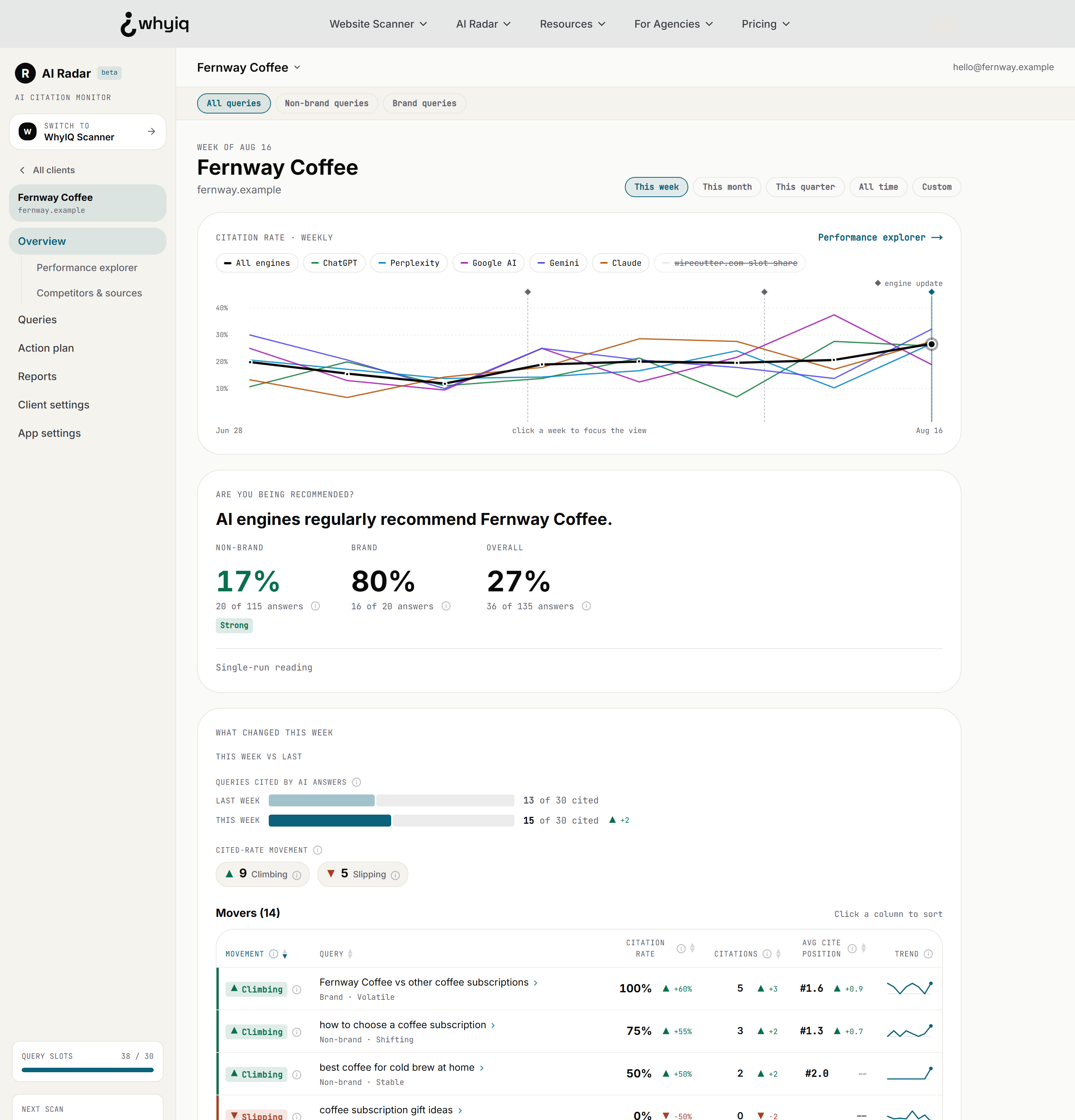
- The read. Your citation rate over time, with every engine drawn as its own line, the read week marked, and a marker on each week you shipped work. Below it, the verdict: the share of buyer questions where an AI answer cited you, with brand-name searches counted separately so they never inflate it.
- What moved. Every climbing, slipping, new, and returned question with its trend, then a line naming who holds the answers you are missing.
- This week's work. How many moves are waiting, what came back, and the one to start with, linked straight to Moves and the Action plan.
- Query scope chips. Flip the whole screen between all queries, buyer questions only, and brand-name searches only.
The three states every answer lands in
- Cited
- The AI answer linked to your site as a source. This is the win: the engine pointed the reader at you.
- Mentioned
- The answer named your brand but did not link to your site. Better than nothing, but the reader gets no route to you.
- Absent
- The answer neither named you nor linked to you. Moves turns each of these into a checklist to take the answer back.
How to read it
Calibrate your expectations low and honest: most brands start near zero, and realistic cited rates stay in single or low double digits. Under 5 percent reads as Starting, 5 to 12 as Building, 12 to 25 as Strong, and 25 or more as Leading. Do not react to any single week; the trend over weeks is the product. When you want the Search Console style detail, open Slice the numbers at the foot of the Overview. Every lost answer becomes a checklist on Moves, and the account-level work lives in the Action plan.
Key takeaway
Setup ends when the first scan lands, but the habit that pays is weekly: open the email, read the Overview, work one move. Radar measures; the moves are yours.
Get the most out of Radar
Five habits separate accounts that get value from accounts that just collect data:
Read the weekly email
It lands when the scan finishes and names your top engine and top competitor. It is the 30-second version of the Overview.
Click into queries that moved
Every query opens into the verbatim AI answers behind it: which engine cited whom, at what position, and what the answer actually said. That verbatim text is the most persuasive artifact in the product.
Declare your review profiles
In Client settings, tick the review platforms you already have (Google Business Profile, Trustpilot, and so on) and paste the links. Radar folds them into the advice instead of recommending places you are already listed.
Append, don't rebuild
When buyer vocabulary drifts or a new sub-niche appears, use Append new queries. The bank grows, the history stays comparable, and the trend keeps meaning something.
Work one move at a time, then let the scans judge it
Tick a move's steps and confirm it is live; the next two weekly scans decide whether the answer flipped. Off-page work (reviews, communities, third-party coverage) can take 4 to 8 weeks to show, so judge it on the month, not the Tuesday.
For agencies: adding clients
On the Agency plan every client gets its own workspace, its own 40-question bank scanned weekly, and a white-label client report you can publish from the Reports tab. Each question also runs three times per scan and is averaged into a confidence band, so the numbers you put in front of a client are not single-run noise.
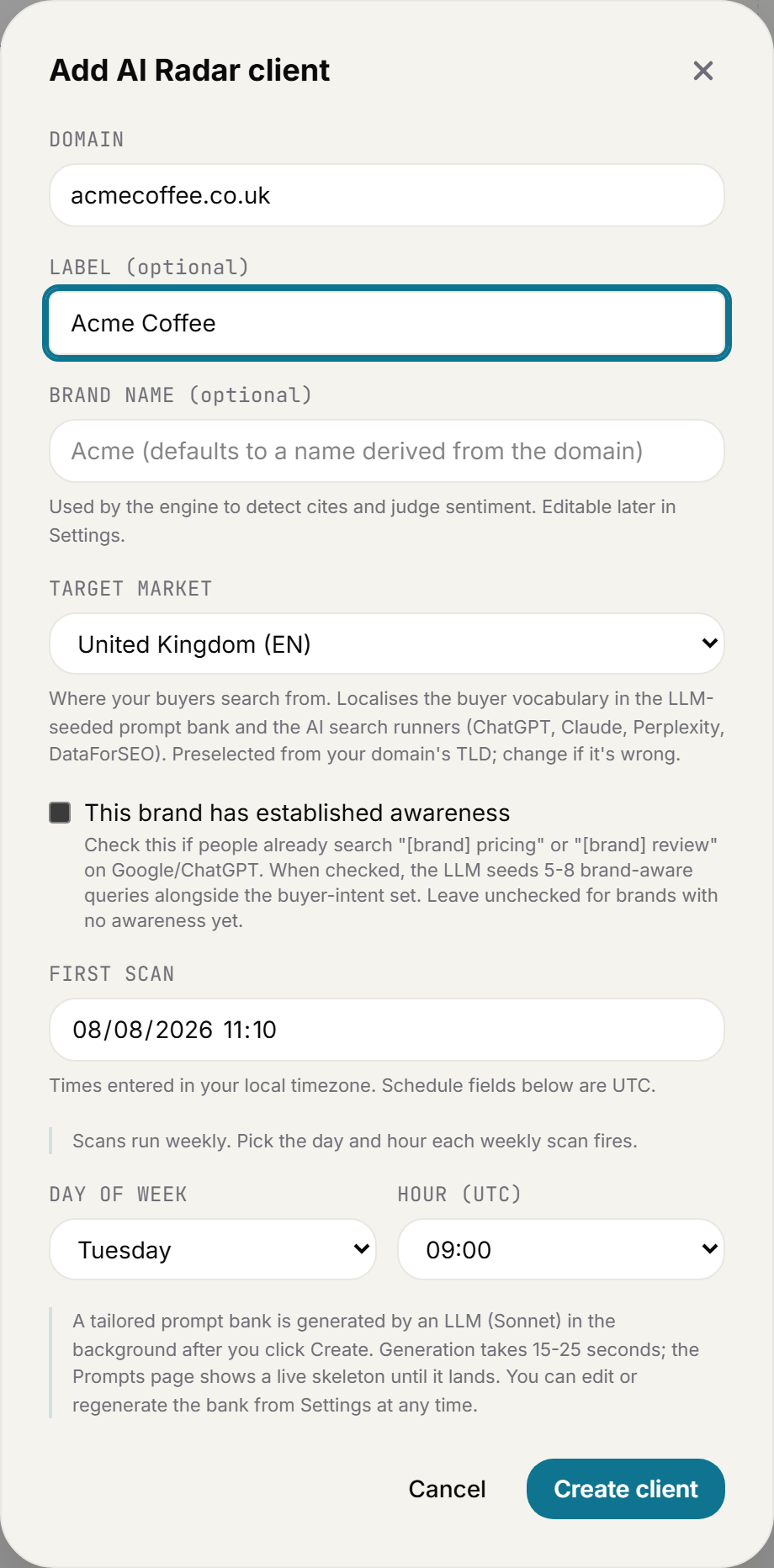
- Domain first. Radar derives the brand name and, from the domain's ending, preselects the target market: a .co.uk domain lands on United Kingdom automatically. Change it if it guesses wrong.
- Established awareness. Tick it when people already search the client's name; Radar then seeds brand-aware questions alongside the buyer set.
- First scan and schedule. Pick when the first scan runs and which weekday the weekly cycle fires, per client.
How to use it
From the client list, click Add client and enter the client's domain.
Confirm the auto-detected market, set the awareness stage honestly, and let the bank generate.
Run Steps 2 to 5 of this guide once per client. Ten minutes each is enough.
After the first scan, open the Reports tab to preview and publish the white-label weekly report.
The white-label report and the 3-pass confidence band are Agency features, and additional client domains are metered add-ons; see Radar pricing for the current numbers.
Common questions
How long until the data is useful?
The first scan is your baseline. Week-over-week movement appears from the second scan, and off-page work typically takes 4 to 8 weeks to show up in AI answers. The trend over weeks is what you act on.
Can I change the queries after setup?
Yes, at any time: edit, add, archive, reorder, and append without losing history. Only the full rebuild resets your trend, and Radar warns you before it does.
What if my cited rate is 0 percent?
Normal at the start, and exactly what Radar is for. Realistic rates are low (12 percent is strong), and the Action plan turns every absent answer into prioritised work. Zero with a plan beats a flattering number you cannot act on.
Do I need to do anything each week?
No. The scan fires on your schedule and the email tells you when it lands. The weekly habit worth building is five minutes: read the Overview, do one thing from the plan.
Ready to see who AI recommends?
Start with the free check, or read the full feature guide.